The Small Icon Toolbar provides a convenient way to access frequently used commands in ROBOTC for VEX Robotics 4.X. In ROBOTC 4.0, there are two layers of toolbars within the ROBOTC IDE; the default large icon toolbar and the legacy small icon toolbar.
The Small Icon Toolbar has been carried over from previous versions of ROBOTC and contains a wide variety of easy access commands for your program:
|
|
New (Ctrl - N) - Creates a new blank program. |
|
Open (Ctrl - O) - Opens an existing program. |
|
|
Save (Ctrl - S) - Saves your current program. Your program is automatically saved when your code is compiled. |
|
Save All (Ctrl - Shift - S) - Saves all open programs. |
|
|
Cut (Ctrl - X) - Removes highlighted code and places it on the Windows Clipboard. |
|
Copy (Ctrl - C) - Creates a copy of the currently highlighted code on the Windows Clipboard. |
|
|
Paste (Ctrl - V) - Places a copy the contents of the Windows Clipboard onto the code editor window at the current cursor position. |
|
Print (Ctrl - P) - Prints out the code currently in the code editor window. |
|
|
Undo (Ctrl - Z) - Reverts the last action taken in the code editor window. Undoes are discarded when the code is saved. |
|
Redo (Ctrl - Y) - The opposite of Undo. Only available if an Undo command was recently used. |
|
|
Errors - Shows or hides the compiler error output. | ||
|
|
Find (Ctrl - F) - Finds the specified text. |
|
Find All (Ctrl - Shift - F) - Finds all occurances of the specified text in all source files. |
|
|
Decrease Indent - Indents the selection text left one tab stop |
|
Increase Indent - Indents the selection text right one tab stop |
|
|
Format Whole File (Ctrl - Shift - Alt - F) - Reformats the entire file, aligning all indents and braces. |
|
Toggle Comment (Ctrl - Q) - This will either comment or un-comment the selected lines of code. |
|
|
Comment Line(s) (Ctrl - Shift - Q) - This will add "//" to the selected lines, commenting them out. |
|
Un-Comment Line(s) (Ctrl - Alt - Q) - Removes "//" from the selected lines, un-commenting them. |
|
|
Toggle Bookmark (Ctrl - F2) - Inserts or removes a bookmark. |
|
Clear Bookmarks (Ctrl - Shift - F2) - Clears all bookmarks in the current file. |
|
|
Next Bookmark (F2) - Goes to the next bookmark. |
|
Previous Bookmark (Shift - F2) - Goes to the previous bookmark. |
|
|
Start - Start the execution of a program. |
|
Stop - Stop the execution of a program. |
|
|
Resume - Resume the execution of a program. |
|
Suspend - Suspend the execution of a program. |
|
|
Step In - Step the debugger into the current statement. |
|
Step Over - Step the debugger over the current statement. |
|
|
Step Out - Step the debugger out of the current function. |
|
Step - Step the debugger one statement. |
You can configure which sections of the Toolbar are visible by going to the "View" menu and selecting "Toolbars...":
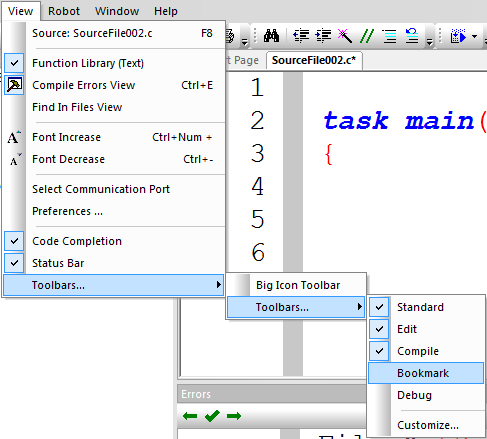
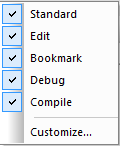
Or by right-clicking on the Toolbar. If you select the customize option, you can further personalize the ROBOTC interface to suit your specific needs.