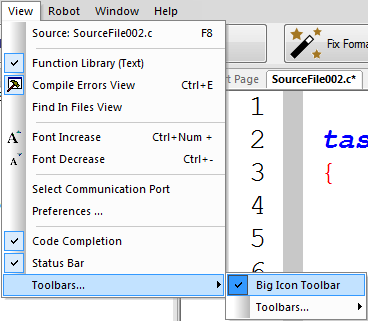
The Large Icon Toolbar provides a convenient way to access frequently used commands in ROBOTC for VEX Robotics 4.X. In ROBOTC 4.0, there are two layers of toolbars within the ROBOTC IDE; the default large icon toolbar and the legacy small icon toolbar
This toolbar is now the default toolbar for ROBOTC and comprises of a number of large buttons that allow you to quickly perform a variety of functions on your program.

|
New File (Ctrl - N) - Creates a new blank program. |
|
Firmware Download - Downloads the latest ROBOTC firmware onto the robot. |

|
Open File (Ctrl - O) - Opens an existing program |

|
Compile Program (F7) - Compiles the current program without downloading to the robot. |

|
Save File (Ctrl - S) - Saves your current program. Your program is automatically saved when your code is compiled. |

|
Download to Robot (F5)- Compiles and downloads the current program onto the robot. |

|
Fix Formatting (Ctrl - Shift - Alt - F) - Reformats the entire file, aligning all indents and braces. |

|
Start - Starts the execution of a program. |
|
Motor and Sensor Setup - Opens the Motor and Sensor Setup Window. |

|
Stop - Stops the execution of a program. |
You can enable and disable the Big Icon Toolbar option through the 'View -> Toolbars' menu.