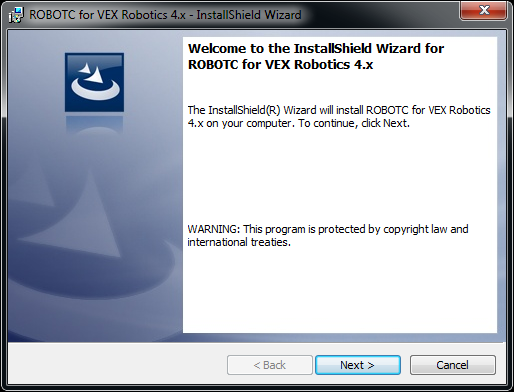
Before we start programming in ROBOTC Virtual Worlds, we need to download and install the client first. This can be done by navigating to ROBOTC's website (https://www.robotc.net) and selecting the 'Downloads' tab.
Note:
If you already have ROBOTC installed on your computer, you can skip this section of the Help guide and start with Activating RVW.
From the ROBOTC website, select the individual robotics platform you wish to program on. Once you navigate to the desired platform page, click on the 'Download Robot Virtual Worlds for VEX Robotics 4.X' to start the download process:
- If you want to use multiple platforms or accidentally download the wrong version, you can manually change the platform you are using and/or add additional platforms when you activate ROBOTC.
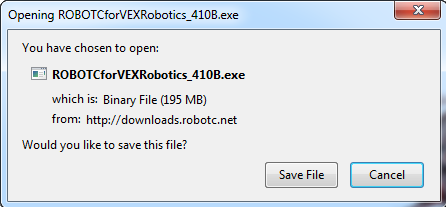
At this point click 'Save' button to start downloading ROBOTC. You may get a warning pop-up from either Windows, your antivirus program, or both. This is to warn you that programs downloaded from the internet can be malicious and to use care before running them; click allow to start the download.
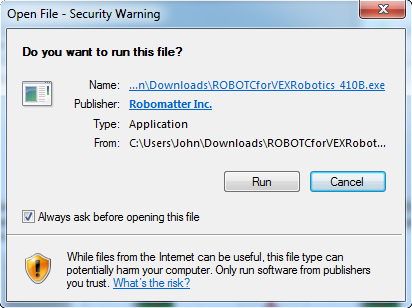
Once the program is done downloading, navigate to the Downloads folder on your computer and start the ROBOTC installer. You may have to right click on the installer and run as administrator depending on individual computer restrictions.