|
|
|
|
|
|
Note: If the "USB Wired Cable" or "Vex Robotics Comm Port" options do not appear in the drop down menu when a VEX Cortex is connected, this may indicate that Windows has not recognized the device or access to it is blocked. Ensure that the VEX Cortex Device Driver was successfully installed with Administrative Privileges, disconnect and reconnect your Cortex from the computer, and press "Refresh List" to force ROBOTC to repopulate the list. |
|
|
|
|
|
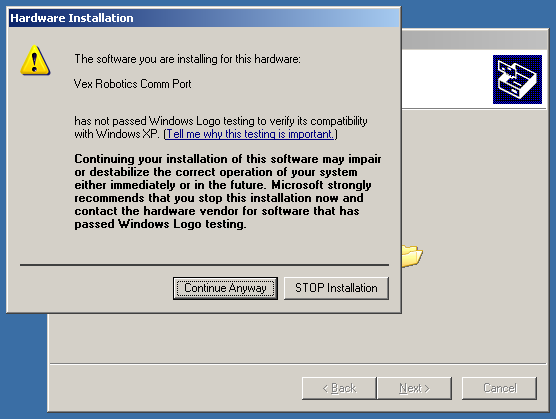
Note: If this is the first time a VEX Cortex running the 3.x Master CPU Firmware has been connected to your computer, Windows will recognize it as a new device, and may prompt you to verify the new hardware installation. Press Continue or Continue Anyway to complete the installation.
|
|
|
| Note:
Once this step is complete, you should no longer need Administrative privileges on your computer; you should be able to download Master CPU Firmware, ROBOTC firmware, and ROBOTC programs in a permissions-restricted account. Only future updates to ROBOTC and the VEX Cortex Device Driver will require Administrative privileges.
Exception: On some computers, Windows may prompt you to "install new hardware" each time the Cortex is plugged in on a different USB port. To alleviate the issue, connect the updated VEX Cortex on each USB port as an administrator (no need to redownload firmware), or dedicate one USB port for communication with the VEX Cortex.
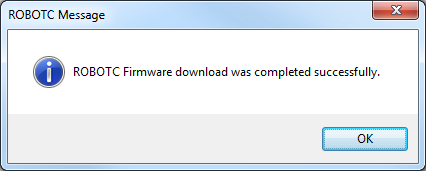
Note: You only need to download the Firmware once, when you first start using a VEX Cortex with ROBOTC, or when you upgrade to a newer version of ROBOTC. You do not need to re-download the firmware every time you want to download code. If the download fails, disconnect the VEX Cortex from your computer and turn it off. Then reconnect it to the computer, allow a few seconds to ensure that Windows recognizes it, turn it on, and try downloading the firmware again. |